
General Site Navigation Tips
General tips and keyboard shortcuts to use while navigating the system.
Navigation
- Each screen in the system will have this navigation bar at the top of the screen. Make sure your mouse is in the proper field on the screen before clicking the buttons.

- Use this arrow to go to the beginning/first entry in a list
- Use this arrow to go to the previous entry in a list (one at a time)
- Use this arrow to go to the next entry in a list (one at a time)
- Use this arrow to go to the end/last entry in a list
- Browse button
- Clear the screen
- Clear the information on the screen. If you have unsaved information on the screen and try to clear, you will be prompted to save.
- Save the information on the screen and clears the information on the screen
- Delete the record
- Link to Help Files
- Close the screen (some screens do not have a close button simply go to another screen).
- The magnifying glass in a field is the BROWSE button.
 Click the BROWSE button to view the list which will appear in dialog box.
- When you click the BROWSE button, you can sort the list by clicking on the column title name. The column you have selected to sort will show a black triangle. Click the column header once to sort A - Z; click the column header twice to sort Z - A.

- Depending on which column you have the list sorted by, start typing the information and press enter. The list will move to the location you typed. For example, if the list is sorted by the case number, type a number and press enter. The list will move to the number you typed.
- When you click the BROWSE button, you can sort the list by clicking on the column title name. The column you have selected to sort will show a black triangle. Click the column header once to sort A - Z; click the column header twice to sort Z - A.
- When typing information into fields, press the TAB button on your keyboard to move to the next field.
- When typing information into fields, press the SHIFT button and TAB button on your keyboard to move back to the previous field.
- When entering dates in date fields, type month/day and press the TAB button. The system will automatically add the current year. If you are entering dates for the previous year, you will need to type the year.
Reports
- When you are running reports, if you select the NOTIFY check box then PROCESS, you can continue working in the system.
- When the report is ready, you will receive a prompt asking if you want to review the report.
- Click YES to open the report in a new window. If you click NO, you can access the report from your dashboard.
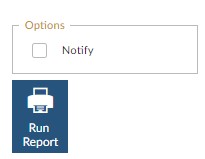
-
When reviewing reports, to quickly go to the end of the report, press the CTRL and END keys on your keyboard.
Quick Launch Toolbar
Regardless of the screen you are on in the system, the QUICK LAUNCH tool bar is on the left of the screen.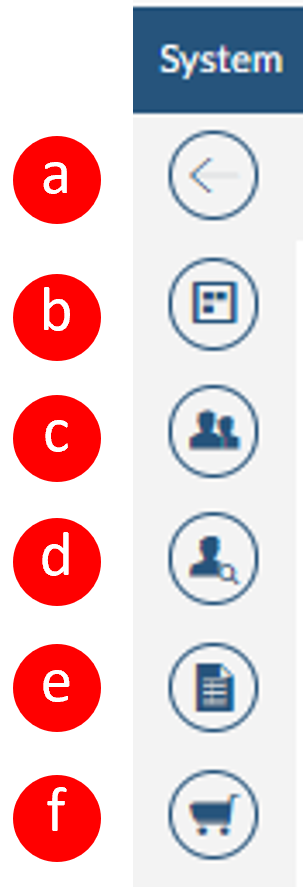
- Use the QUICK LAUNCH tool bar to quickly access some of the most used processes in the system.
- Hide the tool bar/show the tool bar
- Dashboard screen
- Client Master screen
- Vendor Master screen
- Income Entry screen
- Expense Entry screen
7/2022